1. General Overview
Okta is an identity platform. You log in once, and it opens the door to all your other applications like Gmail, Salesforce, whatever. Instead of managing passwords in every app, you manage one identity in Okta.
It works by sitting between your users and your applications. When someone tries to access something, they authenticate with Okta first, then Okta vouches for them to the app.
This solves a few real problems:
Access Control: You can say "Alice gets Salesforce, Bob gets Slack, nobody gets the admin console". You don't need to manage each app's permission system separately.
Passwords Are Terrible: Okta lets you add MFA, use passwordless methods, or enforce device trust. You're not relying on people remembering passwords.
Employee Access: Tie access to job roles. When someone gets promoted or switches teams, their access changes automatically instead of you manually updating five different systems.
Customer Logins: You can use Okta as your login system for your own app or website. Handles social login, passwordless auth, whatever you want.
At its core, Okta is about managing who has access to what and enforcing that consistently. In practice, it's meant to free you from managing identity in a dozen different places.
2. How the Tool Works
Working Mechanism
Okta functions as a cloud-based Identity Provider (IdP) that centralizes authentication and access control.
When a user attempts to access an application:
- The user is redirected to Okta's authentication server
- Okta verifies user credentials (username/password)
- Additional verification is performed using MFA if required
- Okta evaluates security policies (location, device, risk level)
- Upon successful authentication, Okta generates a secure token (SAML/OAuth/OIDC)
- The token is sent back to the application
- The application validates the token and grants access
This process ensures that user credentials are never shared directly with the application, improving security.
Architecture Components
| Component | Description |
|---|---|
| Universal Directory | Stores user identities, attributes, and group memberships |
| Authentication Engine | Handles login verification and MFA |
| Policy Engine | Enforces rules such as MFA requirements, IP restrictions, and device trust |
| Token Service | Generates secure tokens (JWT, SAML assertions) after authentication |
| API Gateway or Integration Layer | Connects Okta with external applications and services |
Data Flow Explanation
- User → Application — User attempts to access a protected resource
- Application → Okta — Application redirects the user to Okta login endpoint
- Authentication Phase — Okta verifies credentials and applies MFA
- Token Generation — Okta creates a signed token containing user identity information
- Token Response → Application — Token is sent back to the application
- Access Granted — Application validates the token and allows access
Type
| Type | Description |
|---|---|
| Agentless | Operates as a cloud service; no agents required on client systems |
| Cloud-based (SaaS) | Fully hosted IAM platform |
| Token-based | Uses OAuth 2.0, OpenID Connect, and SAML |
| Policy-driven / Adaptive Security | Access decisions based on contextual risk and predefined policies |
| SWA | Secure Web Authentication — credential vaulting |
| OIDC/SAML | Modern secure authentication |
3. Features and Capabilities
Key Features
- Single Sign-On (SSO): Allows users to access multiple applications with one login, reducing password fatigue.
- Multi-Factor Authentication (MFA): Adds an extra layer of security through push notifications or OTPs.
- Lifecycle Management: Automates user onboarding and offboarding.
- Universal Directory: Centralizes user identities and permissions across systems.
- API Access Management: Secures APIs by controlling which users and applications can access backend services.
- Adaptive Security: Uses context (device, location, behavior) to dynamically adjust authentication requirements.
Advanced Features
- Adaptive / Risk-Based Authentication: Uses AI and contextual data to assess login risk and enforce policies.
- Passwordless Authentication: Enables login using biometrics (FaceID, fingerprint) or device-based authentication.
- Context-Aware Access Policies: Adjusts authentication based on user/device/network conditions.
- Identity Governance & Compliance: Provides auditing, reporting, and access control for regulatory compliance.
- Okta Identity Engine: Flexible authentication workflows and customizable login experiences.
- Device Trust & Management: Tracks and manages trusted devices for secure access.
- Automation with Workflows: No-code automation for identity-related business processes.
- Extensive Integration Ecosystem (OIN): Supports thousands of SaaS, cloud, and on-prem applications via pre-built integrations.
Limitations
- High Cost: Expensive for small and mid-sized organizations, especially for advanced features.
- Complex Setup: Initial configuration can be difficult and require expertise.
- Internet Dependency: Requires a stable internet connection.
- Limited Customization: Some advanced customizations require extra development.
- Integration Issues: May face challenges with legacy or highly customized systems.
- Learning Curve: Requires training for administrators to manage effectively.
4. Deployment Models
Supported Environments
On-Premise Integration
Okta is not installed directly on on-premise servers, but integrates with existing on-premise infrastructure through lightweight agents that bridge the internal network and Okta's cloud platform. Tools like Okta Access Gateway allow companies to securely expose internal web applications without moving them to the cloud.
Cloud
Okta integrates easily with: - Cloud platforms: AWS, Azure, Google Cloud - SaaS applications: Google Workspace, Slack, Salesforce - APIs and microservices
SaaS
- No need to install or maintain servers
- Updates and security patches are handled automatically by Okta
- Accessible through a web browser
- Scales automatically based on usage
Deployment Types
Single Node
From a user's perspective, everything appears centralized within a single Okta organization (tenant). The underlying infrastructure is abstracted and managed entirely by Okta.
Distributed
Behind the scenes, Okta operates on a highly distributed cloud architecture: - Multiple data centers across different regions - Load balancing to handle high traffic - Built-in redundancy for fault tolerance
This ensures high availability, minimal downtime, and ability to handle millions of users simultaneously.
Agent-Based / Agentless
Okta uses a hybrid approach:
Agentless — Most functionality works without installing anything on user devices. Authentication happens through browser redirects via secure APIs.
Agent-Based — Lightweight agents are used for integration purposes: - Active Directory Agent → syncs users and passwords - LDAP Agent → connects directory services
These agents do not store credentials and operate securely within the organization's network.
5. System Requirements
For Windows Devices
| Requirement | Specification |
|---|---|
| Operating System | Windows Server 2012 R2 |
| Processor | Minimum 1.4 GHz 64-bit |
| RAM | Minimum 512 MB |
| Disk Space | Minimum 300 MB |
For Linux Devices
| Requirement | Specification |
|---|---|
| Operating System | CentOS 7.6, 8.3 / RHEL 8.0 / Ubuntu 18.04.4, 20.04.1 LTS |
| Processor | Minimum 1 GHz 64-bit |
| RAM | Minimum 512 MB |
| Disk Space | Minimum 300 MB |
6. Installation & Setup
A. Local Setup
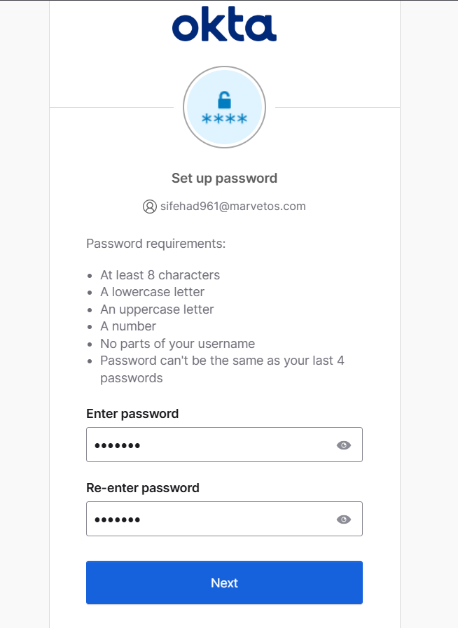
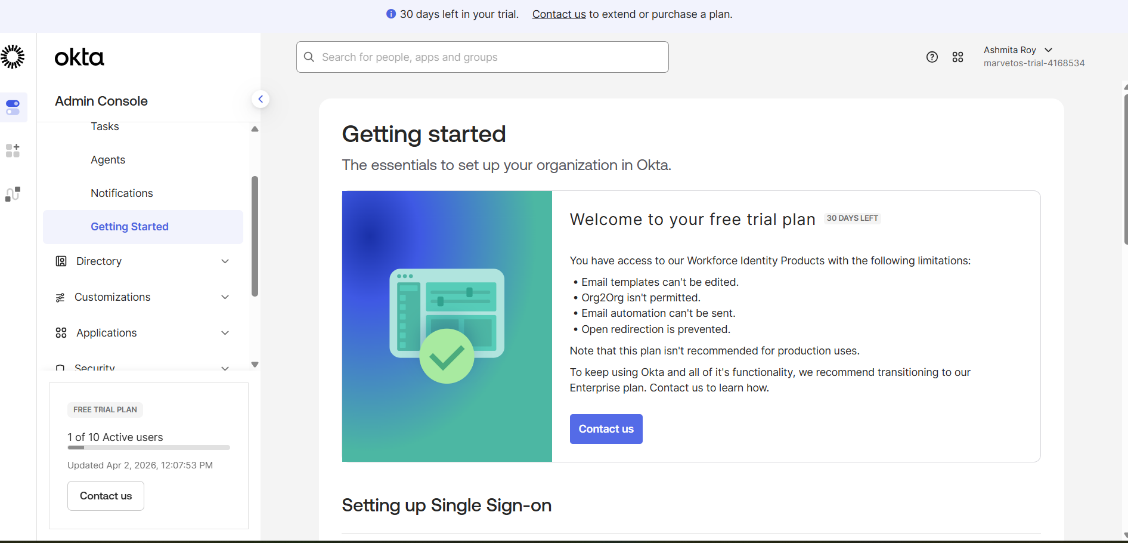
Step 1: Create Okta Developer Account
- Open browser and go to the Okta Developer website
- Register using email and password
- Verify email and log in
- Access the Admin Console of Okta
Step 2: Create a User
- Navigate to: Directory → People
- Click Add Person
- Enter: First Name, Last Name, Email ID, Username
- Set password manually or send activation email
- Click Save
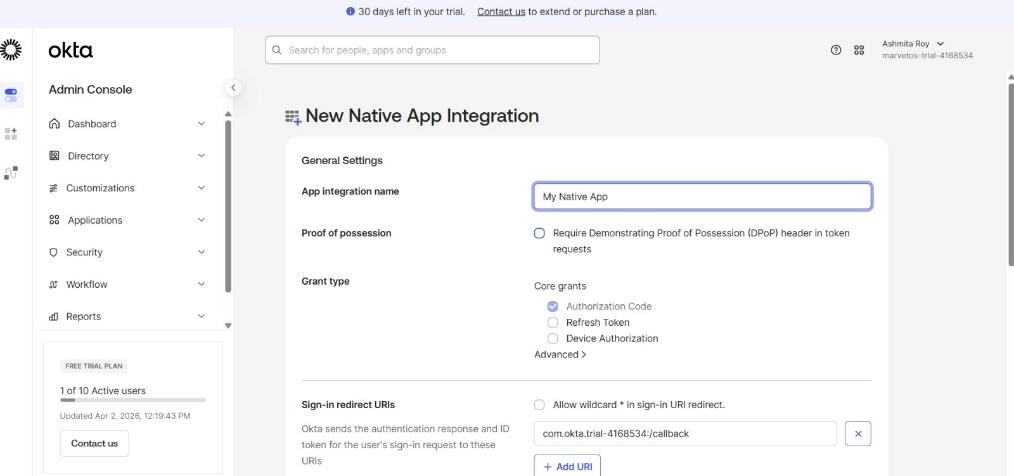
Step 3: Create Application
- Go to: Applications → Applications
- Click Create App Integration
- Select:
- Sign-in method → OIDC (OpenID Connect)
- Application type → Single Page Application (SPA)
- Click Next
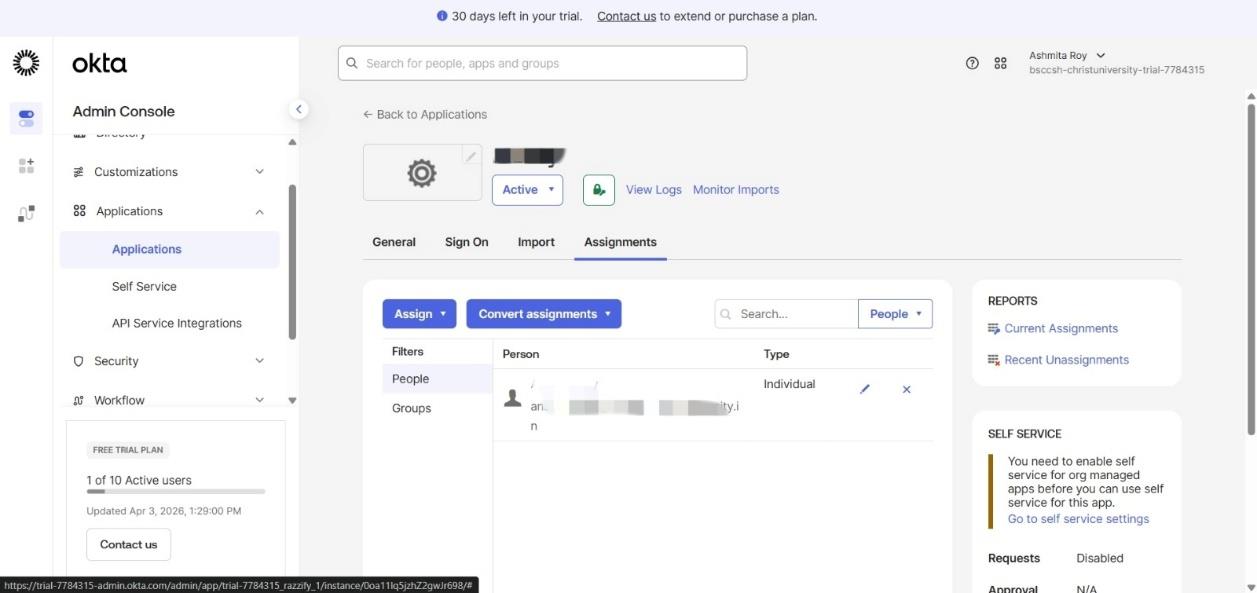
Step 4: Assign User to Application
- Open created application
- Go to Assignments tab
- Click Assign → Assign to People
- Select created user
- Click Save and Go Back
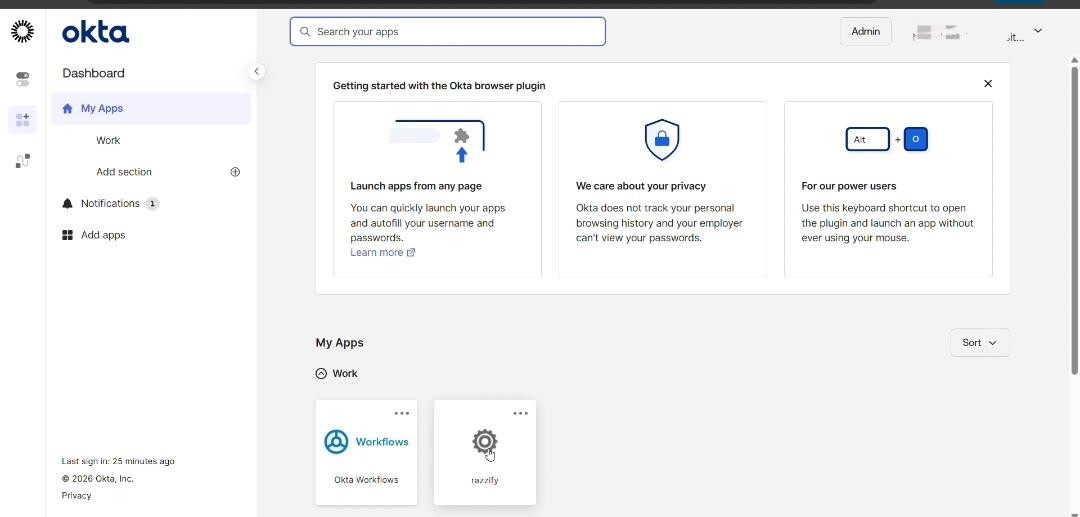
Step 5: Test Single Sign-On (SSO)
- Open Okta dashboard
- Log in using created user
- Click application (razzify)
- Verify user logs in successfully without re-entering credentials
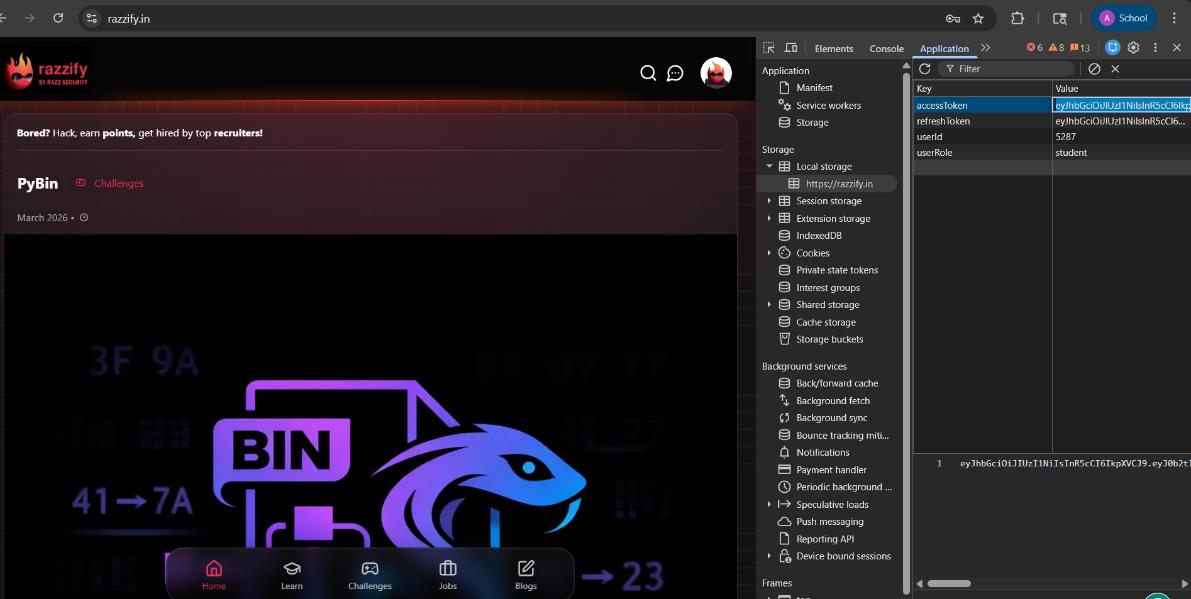
Step 6: Retrieve and Decode Token
- Open browser Developer Tools (
F12) - Go to: Application → Local Storage / Session Storage
- Copy
idTokenoraccessToken - Open JWT.io
- Paste token in Encoded Token section
- View decoded payload (user details, roles, expiry)

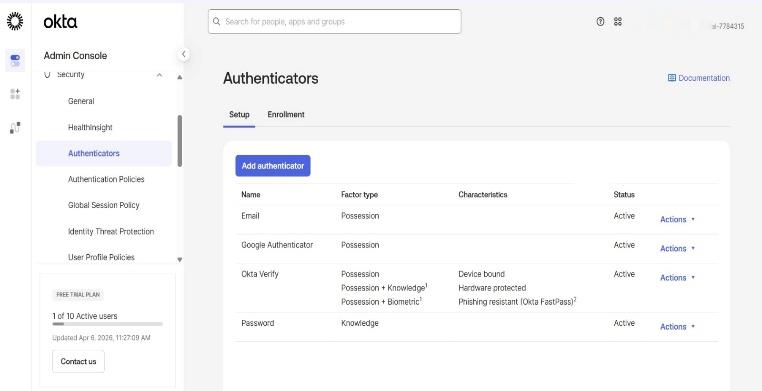
Step 7: Enable MFA (Multi-Factor Authentication)
- Go to: Security → Authenticators
- Select Okta Verify
- Click Edit
- Enable authentication and save
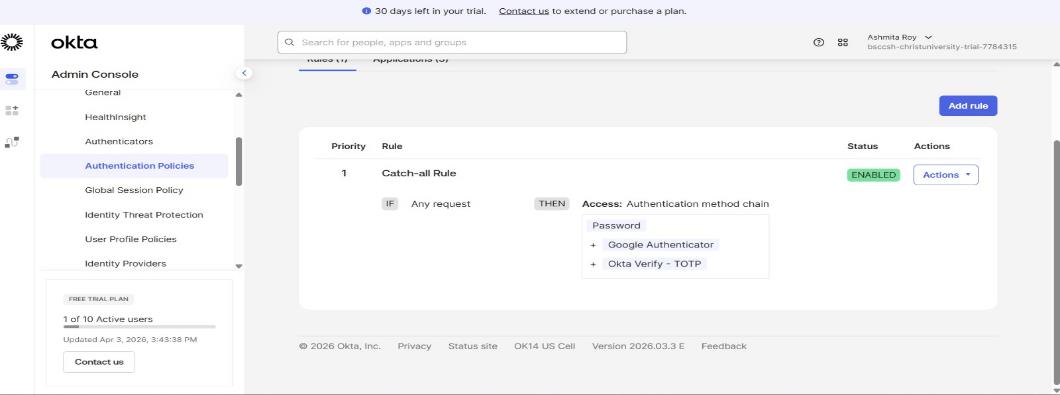
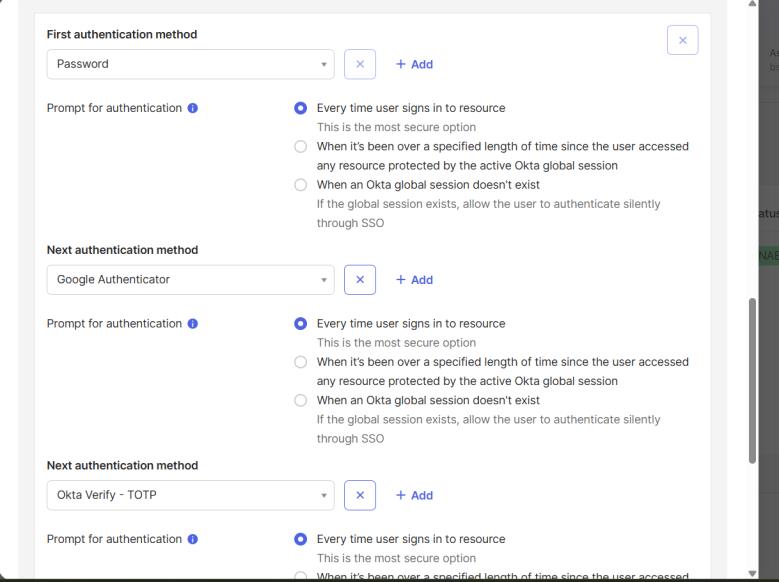
Step 8: Configure Authentication Policy
- Navigate to: Security → Authentication Policies
- Click App sign-in
- Open Default Policy
- Select Catch-all Rule → Edit
- Set:
- Authentication requirement → Password + Another factor
- Prompt for factor → Every time user signs in
- Click Save
Step 9: Apply Policy to Application
- Go to: Applications → razzify
- Open Sign On tab
- Set Authentication Policy → Default Policy
- Save changes
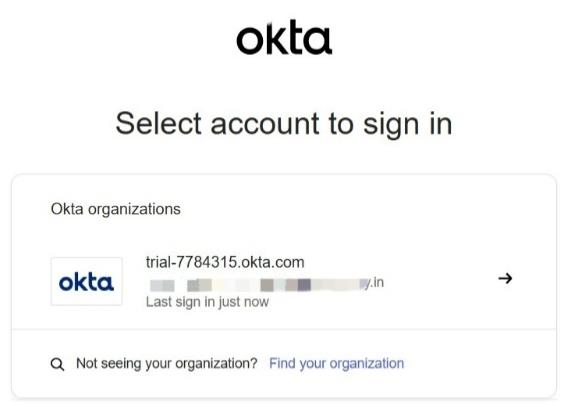
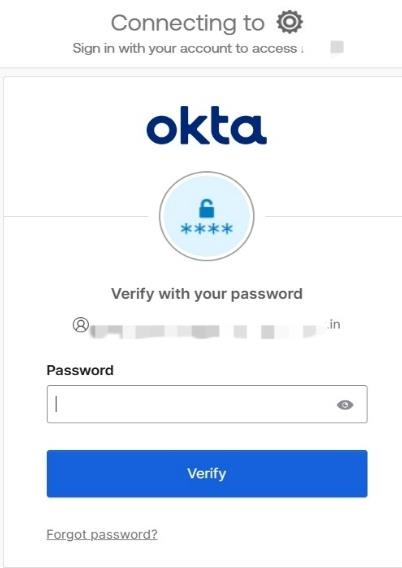
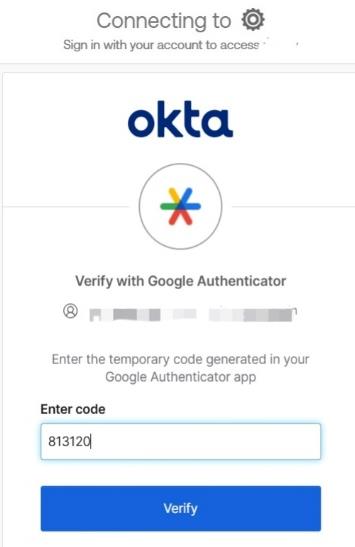
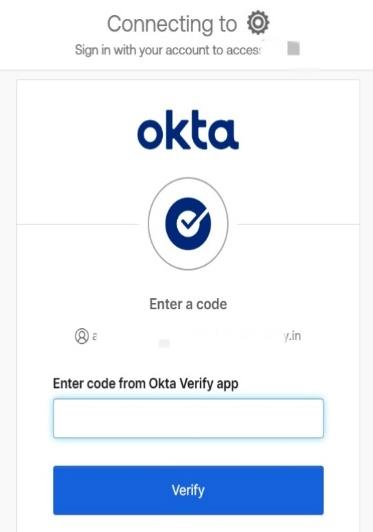
Step 10: Test MFA
- Open browser in Incognito mode
- Log in to application
- Enter username and password
- Complete second factor:
- Scan QR using Okta Verify, OR
- Enter OTP
- Verify successful login
7. Basic Configuration
Initial Configuration involves setting up users, applications, and basic authentication settings:
- Created a test user in Directory → People
- Configured user credentials and handled password reset policy
- Created an application integration (Razzify)
- Assigned the user to the application
- Configured Sign-On method (SWA) for basic authentication
- Verified user visibility in the End-User Dashboard
Advanced Configuration focuses on strengthening security and improving access control:
- Enabled Multi-Factor Authentication (MFA) policies
- Configured authentication policies (password rules, session policies)
- Managed user roles and permissions
- Configured group-based access control
- Monitored login activity and audit logs
- Applied adaptive security policies (based on device/location)
Integrations:
- Integrated a custom application (Razzify) for testing
- Supports pre-built integrations with Google Workspace, Slack, Microsoft services
- Can connect with cloud platforms (AWS, Azure) and on-premise directories (Active Directory, LDAP)
APIs:
Okta provides REST-based APIs for automation and integration, used for user management, application management, authentication workflows, and session handling. APIs communicate over HTTPS using secure tokens.
Third-Party Tools:
- Identity providers: Microsoft Active Directory, LDAP
- Security/monitoring: SIEM tools (Splunk, etc.)
- Development: SDKs for Java, Python, Node.js
- Cloud & SaaS: Google Workspace, Slack, Salesforce
8. Hands-on Usage
How to Start the Tool
- Open a browser and navigate to the Okta Developer login page
- Enter credentials and log into the Okta Admin Console
- Land on the dashboard, which provides access to user management, applications, and security settings
How to Perform Main Function
- A test user was created to simulate an employee identity
- A custom application (Razzify) was created inside Okta
- The user was assigned to the application
- The Sign-On method (SWA) was configured
- The system enforced a password reset, demonstrating security policies
- The user logged into the End-User Dashboard
- The assigned application appeared and access was verified
Commands / UI Actions
- Navigate to Directory → People → Add Person to create users
- Use Applications → Create App Integration to register an app
- Select Secure Web Authentication (SWA) as the login method
- Use Assign → Assign to People to map users to applications
- Trigger Resend Password Email to complete account setup
- Access the End-User Dashboard to test login
Output
Reports:
Okta does not generate traditional downloadable reports by default but provides detailed system logs including: - Successful login attempts - Failed authentication attempts - Application access events - User activity history
Alerts:
- Password expiration warning (forcing reset)
- Security notifications related to login actions
- In real environments: suspicious login behavior, multiple failed login attempts, unusual location/device access
Dashboards:
| Dashboard | Used By | Description |
|---|---|---|
| Admin Dashboard | Administrators | Displays system overview, users, apps, policies; allows configuration and monitoring |
| End-User Dashboard | End users | Displays assigned applications; provides SSO access |
9. Lab Setup
Lab Environment
A simulated IAM lab environment was created using Okta's Developer platform:
- Cloud-based setup (no local installation required)
- One test user and one custom application (razzify)
- Authentication policies configured to enforce secure login
- MFA enabled for enhanced security
- Tested via web browser in both normal and incognito modes
Tools Used
| Tool | Purpose |
|---|---|
| Okta Developer Console | Primary IAM platform |
| JWT.io | Token decoding and analysis |
| Google Chrome | Browser for testing authentication flow |
| Chrome Developer Tools (F12) | Inspect tokens and session storage |
| Okta Verify / Google Authenticator | MFA verification |
| React / Node.js (Optional) | Integrating Okta authentication |
What Was Tested
- Authentication (Login Flow) — User SSO, redirect to application without re-entering credentials
- Token Generation & Validation — JWT token extraction, decoding via JWT.io, payload analysis
- Authorization (Role-Based Access) — User role verification from token, access control logic
- Multi-Factor Authentication — MFA via Okta Verify / Google Authenticator, incognito testing
- Session Management — Normal vs. incognito session behavior; existing session skips MFA (SSO), new session triggers MFA
- Security Behaviour Testing — Token expiration analysis, policy enforcement verification
10. Use Case Mapping
Target Users
| User Type | Use Case |
|---|---|
| IT Administrators | Manage user identities, access policies, and integrations |
| Employees (Workforce) | Access multiple applications securely using SSO |
| Developers | Integrate authentication (OAuth, OIDC, SAML) into applications |
| Partners & Vendors | Get controlled access to specific systems |
| Customers (External) | Use secure login for websites and mobile apps (CIAM) |
Company Size
- Small Businesses: Basic SSO and MFA to secure limited applications
- Medium Enterprises: Lifecycle management, directory integration, policy enforcement
- Large Enterprises: Adaptive authentication, identity governance, automation at scale
Industry
| Industry | Application |
|---|---|
| IT | Secure developer tools, cloud platforms, and APIs |
| Finance & Banking | Protect sensitive financial data; RBI, PCI-DSS compliance |
| Healthcare | Secure patient records; HIPAA compliance |
| Education | Provide students and staff access to multiple learning systems |
| E-commerce | Manage customer identities and secure transactions |
| Government / Public Sector | Secure access to citizen services and internal systems |
Real-World Scenarios
- Employee Access Management: Single login to access email, CRM, HR tools
- Secure Remote Work: Enforce MFA and device-based access for remote employees
- User Onboarding/Offboarding: Automatically create/revoke access
- Customer Identity Management (CIAM): Social login or passwordless authentication
- API Security: Protect backend services using OAuth 2.0 tokens
- Third-Party Access Control: Vendors given limited, role-based access
11. Pricing & Subscription Model
-
Pricing type: Subscription-based (SaaS model)
-
Billing model: Per user (monthly subscription) (TODO: Some sections are missing here add them )
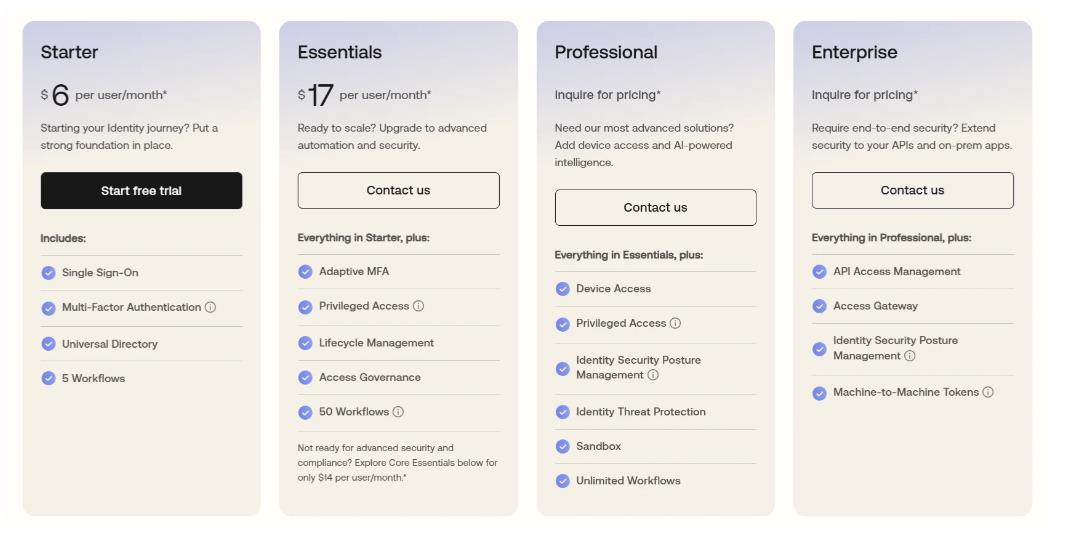
Plans Available
| Plan | Price | Key Features |
|---|---|---|
| Starter | $6/user/month | SSO, MFA, Universal Directory, 5 Workflows |
| Essentials | $17/user/month | Everything in Starter + Adaptive MFA, Lifecycle Management, Access Governance, 50 Workflows |
| Professional | Inquire for pricing | Everything in Essentials + Device Access, Identity Threat Protection, Unlimited Workflows |
| Enterprise | Inquire for pricing | Everything in Professional + API Access Management, Access Gateway, Machine-to-Machine Tokens |
Cost Estimation
| Organization Size | Estimated Monthly Cost |
|---|---|
| Small (10–50 users) | ~$60 – $850/month |
| Medium (100–500 users) | ~$1,700 – $8,500/month |
| Enterprise (1000+ users) | Custom pricing (can exceed $15,000+/month) |
Hidden Costs
- Infrastructure: Minimal (cloud-based, no hardware needed)
- Add-ons: Advanced MFA, API access management, identity governance may cost extra
- Maintenance: Requires admin effort and possible training costs
12. Free vs Paid
| Aspect | Free Version | Paid Version |
|---|---|---|
| Features | Basic SSO and MFA | Adaptive authentication, lifecycle management, API access management |
| User Capacity | Limited users | Scalable for small, medium, and large enterprises |
| Security | Basic security mechanisms | Risk-based access and threat protection |
| Integrations | Limited application integrations | Extensive cloud and on-premise app integrations |
| Automation | Minimal or basic workflows | Advanced automation, provisioning, and identity workflows |
| Support | Limited or community-based | Dedicated enterprise-level support (24/7) |
| Customization | Limited options | High level of customization and policy control |
13. Competitor Analysis
Competitor 1: Okta vs Microsoft Azure Active Directory
| Feature | Okta | Microsoft Azure AD |
|---|---|---|
| Platform Type | Independent, cloud-native IAM | Tightly integrated with Microsoft products |
| Ecosystem & Integration | Wide third-party integrations (AWS, Google Workspace, Slack, custom apps) | Strongly tied to Microsoft services; less flexible outside that ecosystem |
| Ease of Use | Clean, intuitive interface; minimal learning curve | Can be complex for users unfamiliar with Microsoft's ecosystem |
| Authentication & Security | Adaptive MFA, policy-based access across any platform | Conditional access policies optimized for Microsoft environments |
| Deployment Flexibility | Fully SaaS, vendor-neutral, hybrid and multi-cloud ready | Best suited for organizations already on Azure |
| Customization & Control | Structured configuration with moderate customization | Deep configuration options but requires technical knowledge |
| Best Use Case | Mixed-platform environments needing flexible identity solution | Companies heavily invested in Microsoft technologies |
| Vendor Lock-in | Low risk | Higher risk due to Microsoft ecosystem dependency |
Competitor 2: Okta vs Auth0
| Feature | Okta | Auth0 |
|---|---|---|
| Primary Focus | Enterprise identity management | Application-level authentication |
| Target Users | IT administrators and organizations | Developers building apps and APIs |
| Ease of Use | UI-based; minimal coding required | Requires APIs, SDKs, and custom logic |
| Customization | Structured workflows with limited customization | Highly customizable authentication flows |
| Authentication Approach | Centralized SSO, MFA, policy-based access | Token-based (OAuth, OIDC, JWT) for securing applications |
| Integration Level | Organizational level, multiple apps under one system | Application level, embedded within individual apps |
| Security Model | Centralized policy enforcement, RBAC | Flexible authentication logic, API security |
| Best Use Case | Workforce identity and enterprise systems | Securing web/mobile apps with custom login experiences |
| Setup Complexity | Relatively simple for enterprise use | More complex due to coding requirements |
14. Advantages and Disadvantages
Advantages
- One place to manage access. You're not configuring permissions in Slack, then Gmail, then your internal tools.
- Single sign-on actually works. Users log in once and access everything they need. Less password reuse, fewer support tickets.
- MFA that sticks. You can enforce it everywhere at once instead of app by app.
- Plays nicely with everything. SAML, OAuth, OIDC, and pre-built connectors to most SaaS apps.
- It's just there. Cloud-hosted, updates automatic, nothing to install locally.
- Scales without breaking. Handles thousands of users and apps without falling over.
- Setup is straightforward. The admin console is actually usable. You can get basic auth working in an afternoon.
- Audit trail for compliance. Every login, every permission change, logged and exportable.
Disadvantages
- It costs money. Basic plans are around $6/user/month, advanced features much more. Small teams and startups feel this.
- No internet, no login. If Okta's down or your connection fails, people can't authenticate. You need fallback plans.
- Customization is limited. You get what Okta offers. If you need weird authentication flows, consider Auth0 instead.
- Advanced features are complex. Conditional access, identity federation, API management—these require expertise to configure right.
- An outage hits hard. If Okta is down, access to all your apps goes with it.
- Hybrid is messy. Connecting on-premise directories to Okta's cloud takes extra work and lightweight agents.
- Switching is painful. Once you're deeply integrated, replacing Okta means reimplementing auth everywhere.
15. Issues & Troubleshooting
Issues Faced
- Business email restriction during signup: Okta required a business/domain email for account creation.
- User unable to log in after creation: Login failure due to password expiration and incomplete account setup.
- Application not working as expected (Razzify): Custom application did not redirect because it was not connected to a real backend service.
- App not visible in user dashboard initially: Application did not appear for the user due to missing assignment.
Errors Encountered
| Error | Cause |
|---|---|
| "Password expired. User is in one-time password mode." | Prevented login until password was reset |
| "No users assigned" / "No users found" | Occurred when trying to access the application without linking users |
| Application launch issues (blank or no response) | Due to incomplete configuration of the custom app |
Fixes
- Email restriction: Used Okta Developer account or alternative email workaround.
- Password reset: Used "Resend Password Email" option to reset credentials and activate the user account.
- User assignment: Assigned the user via Applications → Assign → Assign to People.
- Verified configuration: Checked sign-on settings and ensured the app was properly configured.
- Dashboard testing: Logged into End-User Dashboard to confirm application visibility and access.
Common Mistakes
- Forgetting to assign users to applications — creating an app alone is not enough
- Ignoring password setup requirements — users cannot log in until password setup is completed
- Expecting custom apps to work without backend configuration
- Confusing Admin Dashboard with End-User Dashboard
- Not checking sign-on method (SWA vs OIDC)
16. Security & Compliance
Data Handling
- User credentials are never shared directly with applications
- Passwords are securely stored using strong hashing algorithms
- Authentication is handled via secure tokens (JWT, SAML assertions)
- All communication occurs over HTTPS (TLS encryption)
- Okta follows the principle of least privilege
Log Storage
Okta maintains detailed system and authentication logs including: - User login attempts (successful and failed) - Application access events - Administrative actions - Security policy enforcement
Logs are stored securely within Okta's cloud infrastructure, accessible through the Admin Console, exportable to SIEM tools (e.g., Splunk), and support real-time monitoring, incident investigation, and compliance auditing.
Compliance Support
| Standard | Description |
|---|---|
| ISO 27001 | Information security management |
| SOC 2 | Security, availability, and confidentiality controls |
| GDPR | Data protection and privacy (for EU users) |
| HIPAA | Healthcare data protection (in supported configurations) |
Okta also provides audit trails for regulatory requirements, data protection controls and encryption, and role-based access control (RBAC) for secure administration.
17. Scalability & Performance
Scalability
Okta is designed with high scalability as a core feature, suitable for organizations of all sizes. It uses a multi-tenant cloud architecture with logically isolated data per tenant, running on a distributed system across multiple data centers.
As organizations grow, they can add more users, integrate more applications, and define more policies without needing to upgrade hardware. Okta supports auto-scaling, dynamically adjusting resources based on demand (e.g., peak login times).
This makes Okta suitable for: - Rapidly growing startups - Large enterprises with thousands/millions of users - Global organizations with users in different regions
Performance Observations
During practical testing, Okta showed stable and consistent performance:
- Login process was quick and responsive with minimal delay
- User creation and assignment operations were completed almost instantly
- Switching between admin and user dashboards was smooth
- No crashes or performance-related errors were observed
Technical Reasons for Good Performance
- Token-based authentication (JWT): Reduces server load by avoiding repeated credential checks
- Load balancing: Requests distributed across multiple servers to prevent overload
- Global infrastructure: Geographically distributed servers to reduce latency
- Efficient session management: Maintains secure sessions without repeated authentication
18. Deployment SOP (Company Use)
Requirement Checklist
Before deployment, define: - Number of users and expected growth - Applications to be integrated (cloud + on-premise) - Authentication requirements (SSO, MFA, password policies) - Existing identity systems (Active Directory / LDAP if any) - Compliance requirements (GDPR, SOC 2, etc.) - Network and internet availability
Architecture Selection
Choose the appropriate deployment model:
- Cloud-only architecture: For organizations using SaaS applications
- Hybrid architecture: For environments combining cloud apps and on-premise systems
- Integration components: Okta Universal Directory, MFA and authentication policies, optional AD/LDAP agents
Installation Steps
Since Okta is SaaS-based, installation mainly involves account and environment setup:
- Create Okta organization (tenant)
- Configure admin access and security settings
- Set up domain and organization details
- (Optional) Install AD/LDAP agent for on-premise integration
- Verify connectivity between systems
Configuration Steps
- Create users and groups
- Import users from directory services (if applicable)
- Configure authentication methods (password + MFA)
- Set up application integrations (SSO, SWA, OIDC, SAML)
- Define access policies and role-based permissions
- Assign users/groups to applications
Validation Checklist
Before going live, verify: - User login working correctly - MFA functioning as expected - Applications accessible via Okta dashboard - Role-based access control properly enforced - No unauthorized access possible - Logs capturing all activities
Reporting Setup
- Enable system logs and audit trails
- Configure alerts for failed login attempts and suspicious activity
- Integrate with SIEM tools (if required)
- Define reporting frequency (daily/weekly)
Client Handover Process
- Provide admin access credentials
- Share documentation (user management, app integration, policies)
- Conduct training session for IT/admin team
- Explain troubleshooting steps
- Define support and escalation process
Demo videos