Microsoft Defender for Endpoint is an enterprise endpoint security platform. It combines antivirus protection, EDR, threat intelligence, and automated investigation into one system. If you're already on Microsoft 365, it's built in and ready to go.
The job is straightforward: catch ransomware, fileless attacks, and threats that signatures would miss. It does this by collecting telemetry from your endpoints (what processes run, what files change, network connections) and analyzing that data in the cloud against known attack patterns.
It covers the full security lifecycle—prevention before a breach, detection when something goes wrong, investigation to understand what happened, and response to contain it.
1. How the Tool Works
Defender uses a built-in Windows sensor to collect telemetry: process activity, file operations, registry changes, network connections. That data goes to Microsoft's cloud backend, where it gets run against threat intelligence and behavioral analysis models.
The cloud side correlates signals from your endpoints with global threat feeds to spot patterns that matter. If a file shows up that's known malicious, or if a process is doing something unusual, that triggers an alert.
Architecture Components
- Endpoint Sensor (installed or built-in)
- Microsoft Defender Security Portal
- Cloud Analytics Engine (Azure-based)
- Threat Intelligence Network
Data Flow Explanation
- Endpoint generates telemetry data
- Data is encrypted and sent to Microsoft cloud
- Cloud engine analyses behaviour using AI/ML
- Suspicious activities generate alerts
- Alerts are grouped into incidents for investigation
Type
- Agent-based
- Behaviour-based and signature-based
- Cloud-managed EDR
2. Features & Capabilities
Core Features
- Real-time endpoint protection
- Threat detection and alerting
- Endpoint detection and response (EDR)
- Automated investigation and remediation
Advanced Features
- Advanced threat hunting using KQL
- Threat and vulnerability management
- Attack Surface Reduction (ASR) rules
- Integration with Microsoft Sentinel (SIEM)
Limitations
- Requires Microsoft ecosystem for full functionality
- Licensing cost may be high for small organizations
- Advanced features require technical expertise
3. Deployment Models
Supported Environments
- On-premise: Limited (managed via cloud portal)
- Cloud: Fully supported (Azure-based backend)
- SaaS: Yes (primary deployment model)
Deployment Types
- Distributed architecture
- Agent-based deployment
4. System Requirements
- OS: Windows 10/11, Windows Server, Linux, macOS
- CPU: Minimum 2 cores
- RAM: Minimum 2 GB (4 GB recommended)
- Storage: At least 1–2 GB free space
- Network Requirements: Internet connectivity to Microsoft cloud services
5. Installation & Setup
A. Local Setup (MANDATORY)
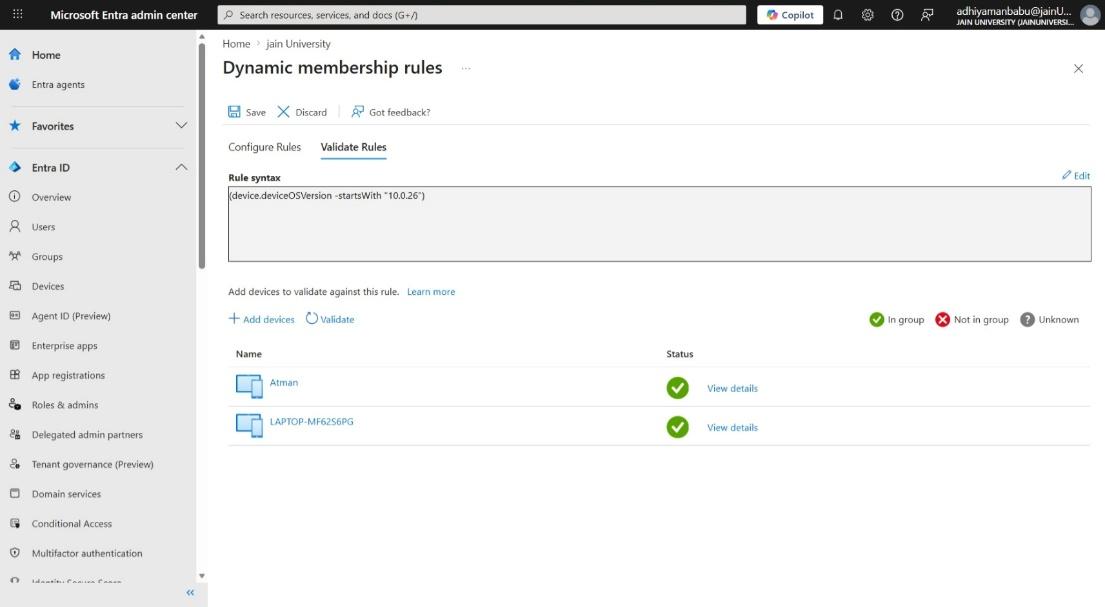
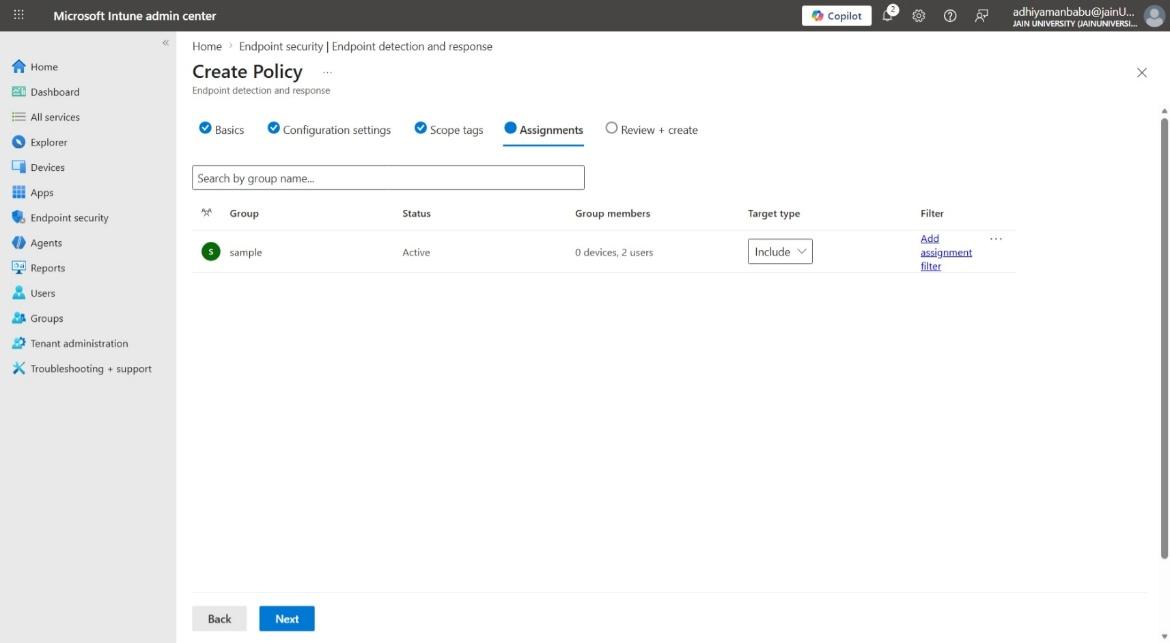
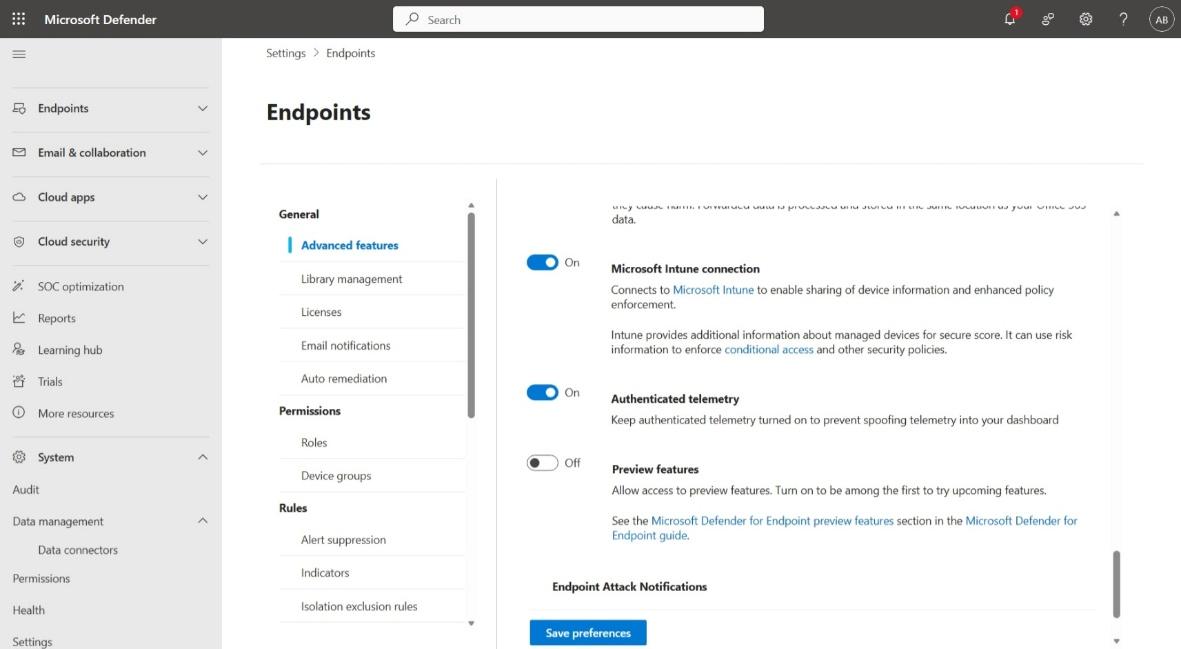
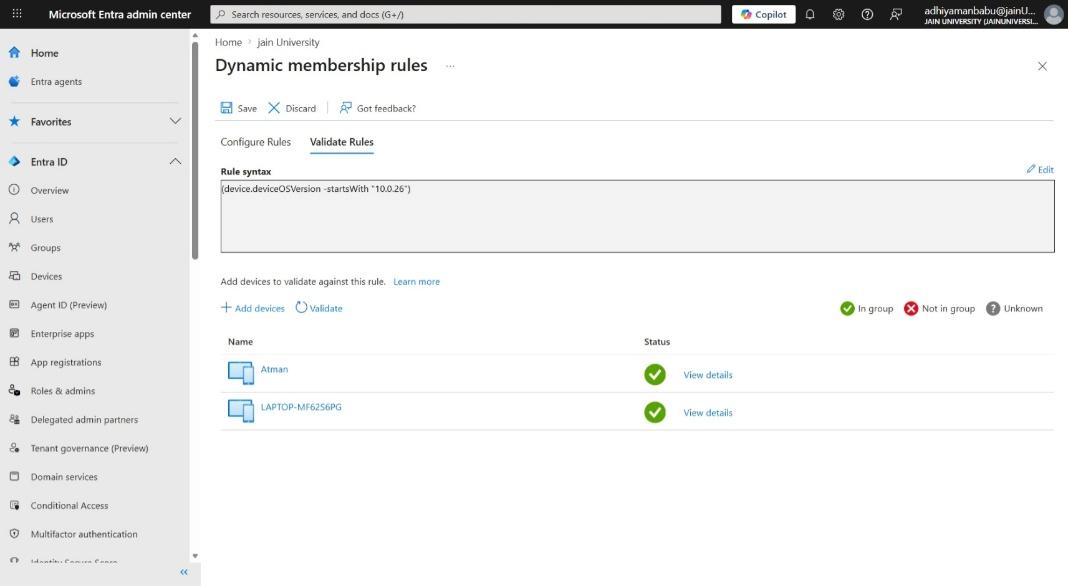
The local setup involves onboarding endpoint devices into Microsoft Defender for Endpoint.
Steps:
- Log in to Microsoft Defender Security Portal
- Navigate to Settings → Endpoints → Device Management → Onboarding
- Select the operating system
- Download the onboarding package
- Execute the script on the target machine
Command Used:
WindowsDefenderATPOnboardingScript.cmd
B. Cloud Setup (MANDATORY)
Cloud Provider Used: Microsoft Azure
Instance Type: Optional (Virtual Machine for testing)
Setup Steps:
- Create Microsoft account (if not available)
- Subscribe to Microsoft Defender for Endpoint (via Microsoft 365)
- Access https://security.microsoft.com
- Enable Defender features in settings
- Configure security policies
Estimated Daily Cost: Varies depending on plan (~$5–$15 per endpoint/month)
6. Configuration
Basic Configuration
- Enable real-time protection
- Configure antivirus policies
- Set alert thresholds
Advanced Configuration
- Configure ASR rules
- Enable automated investigation
- Define endpoint detection policies
Integrations
- APIs: Microsoft Graph API
- Third-party tools: Splunk, ServiceNow, Microsoft Sentinel
7. Hands-On Usage (Practical)
Step-by-step Workflow
How to start tool: - Access Microsoft Defender portal via browser
How to perform main function:
- Navigate to Incidents & Alerts
- Select an alert
- Analyse affected endpoint
- Take remediation action
Commands / UI Actions:
- Run KQL queries
- Isolate device
- Quarantine files
Output:
- Reports: Threat analysis reports
- Alerts: Real-time threat alerts
- Dashboard: Displays incidents, device status, risk levels
8. Lab Setup (MANDATORY)
- Lab Environment Created: Windows 10 Virtual Machine
- Tools Used: EICAR test file
- What Was Tested: Malware detection capability
Results:
- Threat detected successfully
- Alert generated in dashboard
- Automated remediation triggered
9. Use Case Mapping
- Target Users: SOC analysts, security engineers
- Company Size: Medium to large enterprises
- Industry: All industries
Real-world Scenarios
- Ransomware detection
- Insider threat monitoring
- Advanced persistent threat detection
10. Pricing & Subscription Model
Pricing Type: Subscription-based
Plans Available:
- Free: Basic Defender Antivirus
- Paid: Plan 1 and Plan 2
Billing Model: Per endpoint
Cost Estimation:
| Company Size | Estimated Monthly Cost |
|---|---|
| Small company | $50–$200/month |
| Medium company | $500–$2,000/month |
| Enterprise | $10,000+/month |
Hidden Costs:
- Cloud storage (logs)
- Integration tools
- Maintenance
11. Free vs Paid Comparison
Key Differences:
- Free: Basic antivirus
- Paid: Full EDR + threat hunting
Limitations of Free Version:
- No advanced detection
- No automation
When Upgrade is Required:
- When organization needs full visibility and response
12. Competitor Analysis
Competitor 1: CrowdStrike Falcon
- Lightweight agent
- Strong threat intelligence
Competitor 2: SentinelOne
- Autonomous response
- Advanced AI detection
13. Advantages & Disadvantages
Advantages
- Built into Windows. No extra agent to manage.
- Detection is solid if you accept that it's learning from Microsoft's telemetry, not your own threat intel.
- One console for all your endpoints if you're already on Microsoft 365.
Disadvantages
- Configuration gets complicated once you go beyond the defaults.
- Expensive to scale to large organizations.
- You're locked into the Microsoft ecosystem to get real value.
14. Issues & Troubleshooting
Issues Faced:
- Device onboarding failures
- Connectivity issues
Errors:
- Cloud communication errors
Fixes:
- Check network connectivity
- Verify licenses
Common Mistakes:
- Misconfigured policies
- Ignoring alerts
15. Security & Compliance
- Data Handling: Encrypted telemetry
- Log Storage: Microsoft Azure
- Compliance Support: GDPR, ISO 27001, HIPAA
16. Scalability & Performance
- Scalability: Highly scalable (cloud-native)
- Performance: Minimal system impact
- Enterprise Readiness: Fully enterprise-ready
17. Deployment SOP (Company Use)
- Requirement checklist preparation
- Architecture planning
- Tool installation
- Policy configuration
- Validation and testing
- Reporting setup
- Client handover
18. Demo Summary
What was demonstrated: - Alert investigation - Device isolation
Key Findings: - Fast detection capability - Effective automated response - Strong visibility across endpoints