IMPLEMENTATION OF IDENTITY AND ACCESS MANAGEMENT USING MICROSOFT AZURE/ ENTRA ID
Basic Information
1. TOOL OVERVIEW
Microsoft Entra ID is a cloud-based identity and access management (IAM) service that enables organizations to manage user identities and control access to applications and resources.
It provides authentication, authorization, and identity management services using modern protocols such as OAuth 2.0, OpenID Connect, and SAML.
In traditional authentication systems, each application manages its own user credentials, leading to security risks such as password reuse, weak authentication mechanisms, and lack of centralized control. Microsoft Entra ID addresses these issues by: Centralizing identity management in a single platform Eliminating the need for applications to store passwords Enabling secure authentication using token-based mechanisms Enforcing security policies such as Multi-Factor Authentication (MFA) Providing consistent access control across multiple applications Microsoft Entra ID is used in the Identity and Access Management (IAM) phase of the cybersecurity lifecycle. It is primarily involved in: Authentication: Verifying the identity of users during login Authorization: Granting or restricting access based on roles and policies Access Control: Managing permissions for applications and resources Security Enforcement: Applying policies such as MFA, conditional access, and session controls
2. How the Tool works
Working Mechanism: Microsoft Entra ID functions as a cloud-based Identity Provider (IdP) that manages authentication and authorization for users accessing applications and services. When a user attempts to access an application:
- The user tries to access an application (e.g., Microsoft 365, Azure, or third-party app)
- The application redirects the user to Microsoft Entra ID login page
- Entra ID verifies user credentials (username/password or passwordless method)
- Multi-Factor Authentication (MFA) is triggered if required
- Conditional Access policies are evaluated (location, device, risk level)
- Upon successful authentication, Entra ID generates a secure token (OAuth 2.0 / OpenID Connect / SAML)
- The token is sent back to the application
- The application validates the token and grants access This ensures that user credentials are never directly exposed to applications, improving overall security. Architecture Components: The main components of Microsoft Entra ID architecture include: Directory Service (Microsoft Entra Directory): Stores user identities, groups, roles, and attributes Authentication Service: Handles login verification, MFA, and passwordless authentication Conditional Access Engine: Applies policies based on user risk, device compliance, location, and behavior Token Issuance Service: Generates secure tokens (JWT, SAML assertions) after authentication Application Integration Layer: Connects Entra ID with SaaS apps, APIs, and enterprise applications Identity Protection (Risk Engine): Detects suspicious activities and assigns risk levels to users and sign-ins.
Data Flow Explanation: The authentication flow in Microsoft Entra ID follows a context-aware, risk-based access model:
- User → Application Request The user attempts to access a protected resource
- Application → Entra ID Redirect The application redirects the user to Entra ID login endpoint
- Primary Authentication User provides credentials or uses passwordless authentication
- Identity Protection Check (Risk Evaluation) Entra ID analyzes the login attempt using signals like: o Location (impossible travel) o Device behavior o Sign-in patterns A risk level is assigned (Low / Medium / High)
- Conditional Access Evaluation (Core Feature) Access policies are enforced based on: o User identity and role o Device compliance status o Network/location o Calculated risk level Possible outcomes: o Allow access o Require MFA o Block access
- Multi-Factor Authentication (if required) Additional verification step is triggered
- Token Generation Entra ID generates a secure token (OAuth 2.0 / OIDC / SAML) containing user claims
-
Token Response → Application Token is returned to the application
-
Access Granted Application validates the token and grants access Type: Hybrid (Agent-based + Agentless): Agentless: Cloud-based authentication via browser and APIs Agent-based: Uses Azure AD Connect / Cloud Sync for on-premise integration Cloud-based (SaaS): Fully managed identity platform hosted by Microsoft Token-based Authentication System: Uses modern authentication protocols Policy-driven + Risk-based Security Model: Combines Conditional Access policies with real-time risk analysis
3. Features and capabilities
Microsoft Entra ID provides a comprehensive set of features that simplify identity management while
strengthening security across cloud and hybrid environments.
It combines identity, access control, and security into a single platform, reducing complexity and
enabling centralized management of users, applications, and policies..
Key features include:
Single Sign-On (SSO):
Allows users to access multiple applications with one set of credentials, improving user
experience and reducing password fatigue.
Multi-Factor Authentication (MFA):
Adds an extra layer of security using OTPs, push notifications, biometrics, or hardware
tokens.
Conditional Access:
Enforces access policies based on user identity, device compliance, location, and real-
time risk analysis.
Identity & Access Management (IAM):
Centralized management of users, groups, roles, and permissions across applications and
services.
Hybrid Identity Integration:
Integrates with on-premise Active Directory using Azure AD Connect, enabling seamless
hybrid environments.
Application Management:
Supports thousands of pre-integrated SaaS applications and custom app integrations.
Device Management Integration:
Works with Microsoft Intune to ensure only compliant and trusted devices can access
resources.
Advance features
Identity Protection (Risk-Based Authentication):
Uses AI to detect suspicious login behavior and dynamically enforce security controls.
Passwordless Authentication:
Supports Windows Hello, FIDO2 security keys, and biometric login methods.
Privileged Identity Management (PIM): Provides just-in-time access for admin roles, reducing risk of privilege misuse. Access Reviews & Governance: Automates periodic review of user access to ensure compliance and remove unnecessary permissions. B2B and B2C Identity Services: Enables secure collaboration with external users and customer identity management. Self-Service Password Reset (SSPR): Allows users to reset passwords without IT intervention. API & Application Security: Secures APIs and applications using OAuth 2.0 and OpenID Connect. Audit Logs & Monitoring: Provides detailed logs for sign-ins, user activity, and administrative actions. Limitations
Complex Configuration:
Advanced features like Conditional Access and PIM can be difficult to configure for
beginners.
Cost for Premium Features:
Many advanced capabilities (P2 features like Identity Protection, PIM) require additional
licensing.
Dependency on Microsoft Ecosystem:
Works best within Microsoft environments; may be less flexible in non-Microsoft
ecosystems.
Learning Curve:
Requires understanding of Azure, identity concepts, and policy configurations.
UI Complexity:
The portal can be overwhelming due to the number of features and settings.
Internet Dependency:
As a cloud service, it requires stable internet connectivity.
4. Deployment Models
Supported Environments: Okta itself is not installed directly on on-premise servers like traditional security tools. However, it is designed to work seamlessly with existing on-premise infrastructure. Organizations can integrate their internal systems (such as Active Directory or LDAP servers) with Okta using lightweight agents. These agents act as a bridge between the organization’s internal network and Okta’s cloud platform.
Additionally, tools like Okta Access Gateway allow companies to securely expose internal web applications without moving them to the cloud. This makes it possible to modernize authentication without completely changing existing infrastructure.
Cloud
Okta is primarily built for cloud environments and works exceptionally well with modern cloud- based applications and services.
It integrates easily with:
Cloud platforms like AWS, Azure, and Google Cloud SaaS applications such as Google Workspace, Slack, and Salesforce APIs and microservices used in modern applications In this setup, Okta acts as a centralized identity layer that connects all cloud services, ensuring that authentication is handled securely and consistently across platforms.
SaaS
Okta is delivered as a Software-as-a-Service (SaaS) solution, which means:
There is no need to install or maintain servers All updates and security patches are handled automatically by Okta The platform can be accessed through a web browser It scales automatically based on usage This makes deployment extremely fast and reduces the operational burden on organizations.
Deployment Types Single Tenant (Logical Single Instance): Each organization gets its own tenant (directory instance) Acts as a centralized identity system for that organization Appears as a single logical environment Distributed (Global Cloud Infrastructure): Behind the scenes, Entra ID runs on Microsoft’s global cloud infrastructure: Multiple data centers across regions Built-in redundancy and failover Load balancing for high traffic High availability and fault tolerance Agent-Based / Agentless Agentless: Authentication via browser redirects and APIs No software required on end-user devices Used for most cloud-based authentication Agent-based: Lightweight tools used for integration: Azure AD Connect & Cloud Sync agents Enables synchronization with on-premise directories Does not expose credentials externally
5. System Requirements
Hardware Requirements:
Since Microsoft Entra ID is a cloud-based service, it does not require heavy local
hardware for deployment.
For End Users:
Standard computer (Laptop/Desktop)
Minimum 4 GB RAM (8 GB recommended)
Any modern processor (Intel i3 or equivalent and above)
For Hybrid Setup (Admin Side):
Server for running Azure AD Connect / Cloud Sync agent
Recommended:
8 GB RAM or higher
Multi-core processor
Adequate storage for directory synchronization
Software requirements
Supported Operating Systems:
Windows 10 / Windows 1 1
Windows Server (for hybrid identity tools)
macOS / Linux (for browser-based access)
Required Software:
Web browser (latest versions):
Google Chrome
Microsoft Edge
Mozilla Firefox
For Hybrid Integration:
On-premise Active Directory Domain Services (AD DS)
Azure AD Connect or Cloud Sync agent
Network requirements
Stable internet connection (mandatory for cloud authentication)
HTTPS (Port 443) must be open
Access to Microsoft cloud endpoints
Access requirements Microsoft account or organizational account Azure / Entra tenant setup Admin privileges (for configuration and policy management) Storage requirements Minimal local storage required (since it is SaaS-based) Additional storage needed only for: Logs (if exported) On-premise directory synchronisation
6. INSTALLATION & SETUP
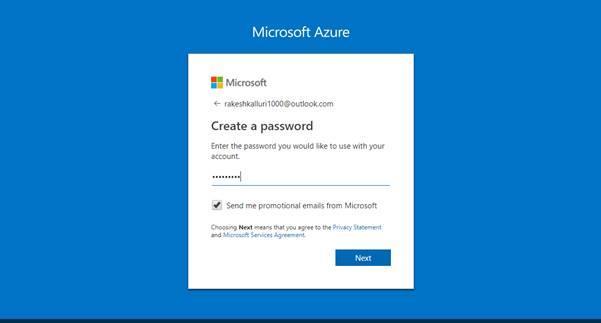
A. Local Setup Step 1: Create Microsoft Azure Account
- Open browser and go to: https://portal.azure.com
- Click Start Free
- Fill details: Name (Ashmita Roy as shown) Email ID Country (India)
- Complete verification
- Login to Azure Portal

Step 2: Access Azure Portal Dashboard
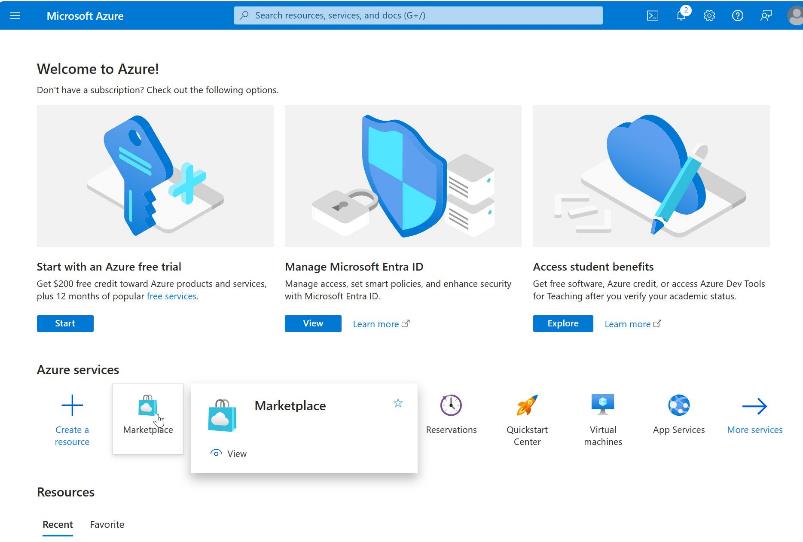
- After login, you land on Azure Portal Dashboard
- Use search bar → type Microsoft Entra ID
- Open the service
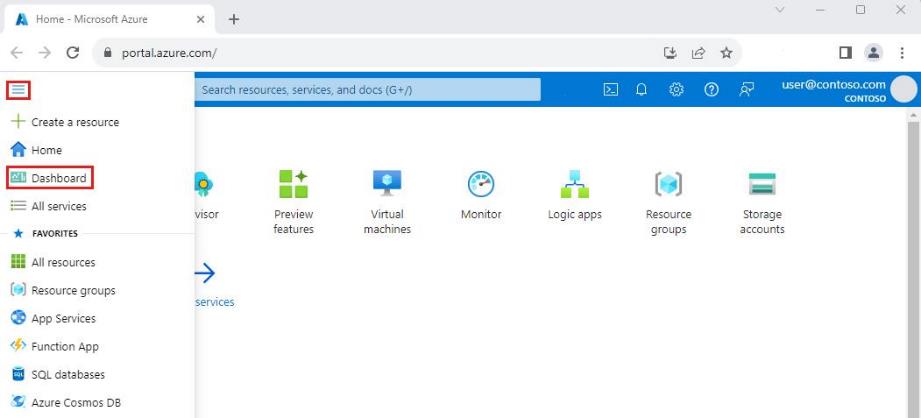
Step 3: Create a New User
- Navigate to: Entra ID → Users → New User
- Enter: Username: Display Name Password (manual/auto-generated)
- Click Review + Create
Step 4: Verify Users in Directory Confirms successful identity creation Users are stored in Azure directory (tenant)
 Step 5: Create Application (App Registration)
- Navigate to: App Registrations → New Registration
- Enter: Application Name: Azure Demo App
- Click Register

Step 6: Configure Authentication (SSO Settings)
- Go to: Authentication (Preview)
- Configure: Redirect URI Enable: ID tokens Access tokens
- Save configuration

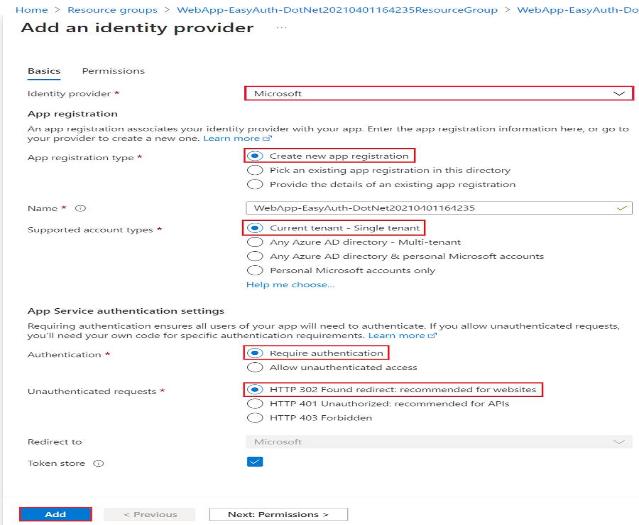
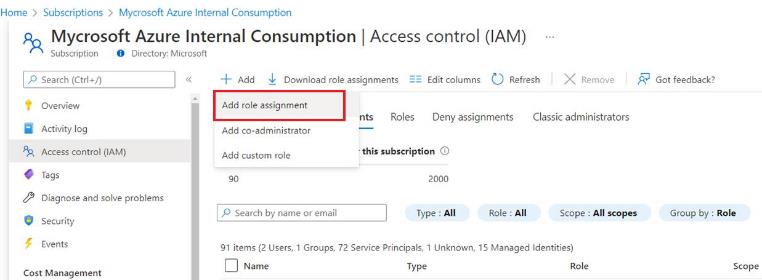
Step 7: Assign Roles (RBAC)
- Navigate to: Roles and Administrators / IAM
- Click Add Role Assignment
- Select role: Reader / Contributor
- Assign to use
Step 8: Configure Authentication Policy
Application is: Activated Enabled for sign-in Visible to user
Step 9: Test Application Access Attempted login resulted in: Error: “App launch failed – not configured for single sign- on” Analysis: This indicates: o SSO configuration incomplete OR o Application not properly integrated
7. BASIC CONFIGURATION:
Create tenant (organization directory) in Microsoft Entra ID
Add users manually or via bulk upload (CSV)
Create and manage groups for role-based access
Assign basic roles (User, Admin)
Enable basic authentication (username & password)
Configure Self-Service Password Reset (SSPR)
Access Entra Admin Center for centralized management
Advanced Configuration: Configure Multi-Factor Authentication (MFA) Implement Conditional Access policies based on: o User roles o Device compliance o Location/IP o Risk levels Enable Identity Protection (risk-based authentication) Configure Privileged Identity Management (PIM) Setup passwordless authentication (FIDO2, Windows Hello) Define access reviews and governance policies Configure device-based access using Microsoft Intune integration
Integrations: APIs: Supports REST APIs via Microsoft Graph API Enables automation of: o User management o Group management o Authentication workflows Integrates with applications using: o OAuth 2. o OpenID Connect (OIDC) o SAML
Third-party tools: Integration with SaaS applications like: o Salesforce o ServiceNow o Google Workspace Supports enterprise tools and platforms Works with security tools (SIEM, SOAR) Hybrid integration with on-premise Active Directory
8.HANDS-ON USAGE (PRACTICAL)
Step-by-step workflow: How to start tool:
- Open browser and navigate to Microsoft Entra Admin Center (entra.microsoft.com)
- Sign in using organizational/admin account credentials
- Select the appropriate tenant (if multiple directories exist)
- Access the main dashboard displaying identity, security, and application overview How to perform main function:
Create users via Users → New User → Create new user / Invite external user Assign roles such as Global Administrator, User Administrator, or custom roles Organize users into groups for policy-based access control Enable Multi-Factor Authentication (MFA) via Security settings Configure Conditional Access policies: o Select users/groups o Define conditions (location, device, risk) o Apply controls (require MFA, block access) Add applications under Enterprise Applications → New Application Configure Single Sign-On (SSO) using: o SAML o OAuth 2.0 / OpenID Connect Enable Identity Protection and review risky users/sign-ins Configure Self-Service Password Reset (SSPR) for users. Commands / UI actions:
Use “+ New User” or “Bulk Create” to add users
Use “Invite User” for external/B2B access
Click “New Policy” in Conditional Access to define security rules
Select conditions using dropdowns (Users, Locations, Devices)
Use “Grant Controls” to enforce MFA or block access
Enable/disable policies using toggle switch
Use “Enterprise Applications → Add” to integrate apps
Configure SSO settings within the application configuration panel Use filters and search to manage users, logs, and applications Output: Reports: ● Sign-in Logs: Displays user login attempts Shows location, device, IP address, and status ● Audit Logs: Tracks changes made by administrators Includes role assignments, policy changes, and user updates ● Usage Reports: Shows application usage statistics Identifies active/inactive users
Alerts: ● Risky Sign-in Alerts: Triggered by unusual login behavior (e.g., impossible travel) ● User Risk Alerts: Indicates compromised or suspicious user accounts ● MFA Alerts: Failed or suspicious MFA attempts ● Conditional Access Alerts: Policy-triggered access blocks or challenges
Dashboard explanation: ● Centralized interface showing: Total users and groups Applications in use Recent sign-in activity ● Displays security insights: Risky users
Risky sign-ins Policy enforcement status ● Provides quick navigation to: Identity management Security configuration Monitoring and logs
9. Lab Setup
Environment Setup: ● Cloud-based lab environment using Microsoft Entra ID ● No local installation required (SaaS platform) ● Accessed via web browser
Tools & Resources Used: ● Microsoft Entra Admin Center (entra.microsoft.com) ● Web browser (Google Chrome / Microsoft Edge) ● Microsoft account / organizational tenant ● Optional: Azure AD Connect (for hybrid setup)
Lab Configuration: ● Created a new tenant (directory) ● Added test users and groups ● Assigned roles (Admin/User roles) ● Enabled Multi-Factor Authentication (MFA) ● Configured Conditional Access policies
Practical Tasks Performed: ● User creation and role assignment ● MFA configuration and testing ● Conditional Access policy creation ● Single Sign-On (SSO) setup for applications ● Monitoring login activity via sign-in logs
Test Scenarios: ● Successful login with correct credentials ● MFA challenge during login ● Login attempt from different location (policy enforcement) ● Failed login attempts and alert generation ● Access restriction based on configured policies
Output Verification: ● Verified login success/failure in Sign-in Logs ● Checked alerts for suspicious activity ● Confirmed policy enforcement (MFA / block access) ● Reviewed audit logs for configuration changes
10. Use case mapping
Target users:
● IT Administrators managing user identities and access
● Security teams monitoring authentication and threats
● DevOps engineers integrating authentication into applications
● Employees accessing organizational resources
● External users (partners, customers) in B2B/B2C scenarios
Company size:
● Small businesses (basic identity and access control)
● Medium enterprises (SSO, MFA, hybrid identity)
● Large enterprises (advanced security, PIM, Zero Trust)
● Global organizations with distributed workforce
Industry:
● IT and Software companies
● Banking and Financial Services
● Healthcare organizations
● Government and public sector
● Education institutions
● E-commerce and SaaS platforms
Real-world scenarios:
● Secure remote access for employees working from home
● Implementing Single Sign-On (SSO) across multiple applications
● Enforcing Multi-Factor Authentication (MFA) for sensitive roles
● Blocking suspicious login attempts using Conditional Access
● Managing admin privileges using Privileged Identity Management (PIM)
● Integrating third-party applications with secure authentication
● Enabling customer login systems for web/mobile applications
● Maintaining compliance through access reviews and audit logs
11. Pricing and Subscription Model
Pricing type: Subscription-based (SaaS model)
Plans Available:
Free: Free trial available
Paid:
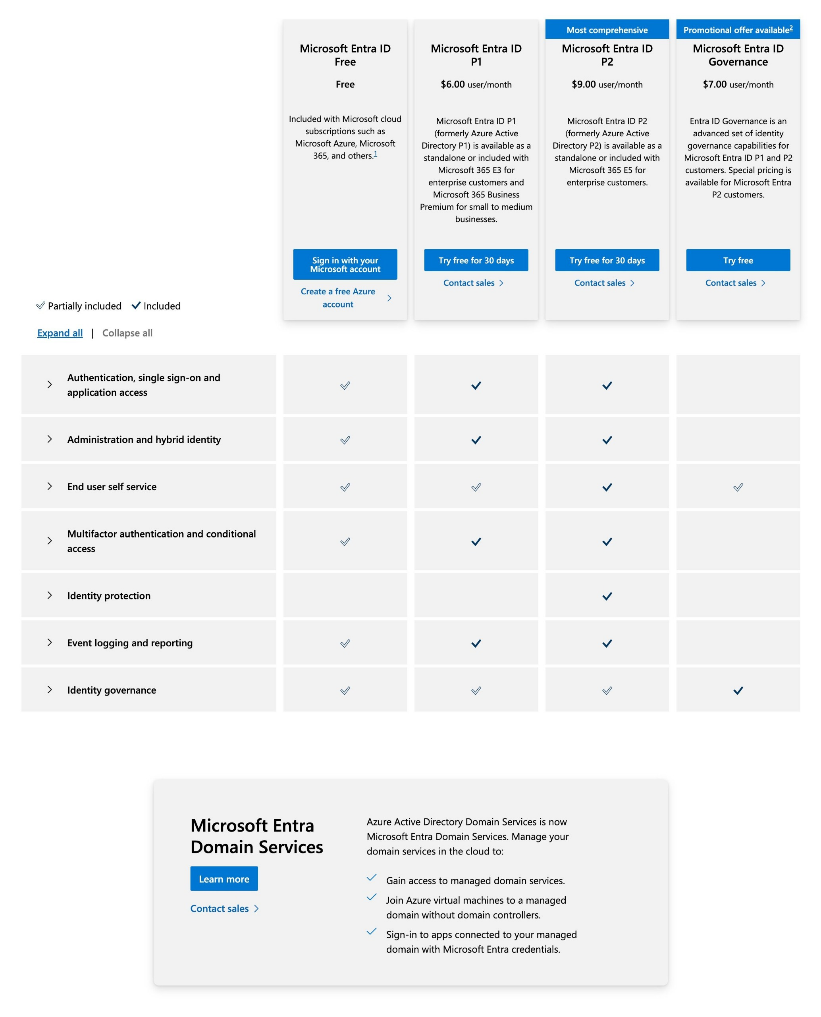
Billing Model Per user (monthly subscription) Pricing depends on: o Plan selected (Free / P1 / P2 / Governance) o Number of users Cost Estimation Small Company (10 – 50 users) Free → $0 P1 → ~$60 – $300/month P2 → ~$90 – $450/month Governance → ~$70 – $350/month
Medium Company (100 – 500 users) P1 → ~$600 – $3,000/month P2 → ~$900 – $4,500/month Governance → ~$700 – $3,500/month
Enterprise (1000+ users) P1 → ~$6,000+/month P2 → ~$9,000+/month Governance → ~$7,000+/month Can exceed $15,000+/month depending on: o Add-ons o Security features o Licensing bundles
12. Free vs Paid
Feature Microsoft Entra ID Free Paid (P1 / P2 Plans)
User & Group Management
Basic user and group creation
supported. Suitable for small
organizations. Limited advanced
controls.
Advanced user lifecycle management.
Supports dynamic groups and automated
provisioning. Better control at scale.
Single Sign-On (SSO)
Basic SSO for limited applications.
Supports essential integrations.
Full SSO for thousands of SaaS apps. Seamless enterprise-wide access management. Multi-Factor Authentication (MFA)
Basic MFA available for security.
Limited customization options.
Advanced MFA with Conditional Access integration. More control over authentication policies. Conditional Access
Not available. No context-based
access control.
Fully available with device, location, and risk-based policies. Core feature for Zero Trust security. Identity Protection Not available. No riskdetection. - based Available (P2). AIand automated response.-based risk detection Privileged Identity Management (PIM)
Not available. Static admin roles
only.
Available (P2). Just-in-time admin access and role activation. Self-Service Password Reset (SSPR)
Basic password reset available.
Limited policy control.
Advanced SSPR with policy enforcement and MFA integration. Hybrid Identity Support
Basic directory sync possible.
Limited features.
Full hybrid identity support with advanced sync options and controls. Access Reviews & Governance
Not available. No periodic access
validation.
Available (P2). Automated access reviews and compliance checks. Reporting & Logs Basic signretention. - in and audit logs. Limited Advanced reporting with longer retention. Integration with SIEM tools.
API & Automation Limited API access. Basic automation. Full Microsoft Graph API support for automation and integrations. Scalability & Enterprise Features
Suitable for small teams and basic
use cases.
Designed for enterprise environments
with advanced security and governance.
13. Competitor analysis
COMPETITOR 1
Feature Microsoft Entra ID Google Cloud Identity
Deployment Model
Supports both cloud and hybrid
environments. Integrates with on-prem
Active Directory. Suitable for gradual
cloud migration.
Fully cloud-native identity platform. No
support for on-prem directory
integration. Best for cloud-only setups.
Ecosystem Integration
Deep integration with Microsoft services
like Azure, M365, and Intune. Provides
seamless enterprise connectivity. Ideal for
Microsoft-based environments.
Strong integration with Google
Workspace services. Works best within
Google ecosystem. Limited outside
integration depth.
Authentication
Supports MFA, passwordless login,
FIDO2, and Conditional Access. Provides
layered authentication mechanisms.
Enables strong identity verification.
Supports MFA and basic authentication
methods. Lacks advanced conditional
and passwordless capabilities. Simpler
authentication model.
Security Features
Includes Conditional Access, Identity
Protection, and PIM. Provides risk-based
and policy-driven security. Designed for
Zero Trust architecture.
Provides basic access control and
security features. Limited risk-based
analysis. Suitable for simpler security
needs.
Risk-Based Access
Uses AI to evaluate sign-in risk
dynamically. Blocks or challenges access
based on context. Enhances adaptive
security.
Limited support for risk-based
authentication. Mostly static policy
enforcement. Less dynamic security
control.
Privileged Access
Offers Privileged Identity Management
(PIM). Enables just-in-time admin access.
Reduces misuse of privileges.
Limited privileged access controls. No
advanced role elevation system. Basic
admin management.
Ease of Use
Moderate complexity due to advanced
features. Requires learning for policy
configuration. Powerful but not beginner-
friendly.
Very easy to use and deploy. Simple UI
and minimal configuration. Suitable for
small teams.
Hybrid Identity
Strong support for hybrid identity. Syncs
with on-prem Active Directory. Enables
unified identity across environments.
No hybrid identity support. Works only
in cloud environments. Not suitable for
legacy systems.
Best Fit Best for infrastructure.enterprises using Microsoft
COMPETITOR 2
Feature Microsoft Entra ID IBM Security Verify
Deployment Model
Primarily cloud-native SaaS solution.
Also supports hybrid identity
integration. Easy to scale globally.
Supports cloud, on-premise, and hybrid
deployments. Highly flexible
architecture. Suitable for legacy-heavy
enterprises.
Ease of Deployment
Quick setup through cloud portal.
Minimal infrastructure required. Faster
deployment cycles.
Complex setup requiring planning and
expertise. Often needs manual
configuration. Longer deployment time.
Customization
Policy-driven configuration model.
Limited deep customization. Focuses
on automation and simplicity.
Highly customizable IAM solution.
Supports complex workflows and
policies. Requires expert-level
configuration.
Security Features
Advanced features like Conditional
Access and Identity Protection.
Integrated security model. Supports
Zero Trust.
Strong authentication and access controls.
Flexible policy enforcement. Lacks built-
in AI-driven risk detection.
Privileged Access
Built-in PIM for role management.
Enables just-in-time access. Reduces
security risks.
Provides privileged access controls.
Requires manual setup and configuration.
Less automated.
Integration
Deep integration with Microsoft
ecosystem. Works seamlessly with
Azure and M365. Strong SaaS support.
Broad integration across multiple
environments. Supports diverse enterprise
systems. More flexible but complex.
Automation
High automation using policy-based
controls. Reduces manual intervention.
Improves efficiency.
Lower automation levels. Requires
manual administration. More operational
effort needed.
User Experience
Modern, user-friendly admin interface.
Easier navigation and management.
Designed for usability.
Complex interface with steep learning
curve. Requires training for effective use.
Less intuitive.
Scalability
Highly scalable cloud infrastructure.
Supports millions of users globally.
Managed by Microsoft cloud.
Scalable but requires infrastructure
planning. Resource-heavy in large
deployments. Less seamless scaling.
Best Fit
Best for cloud-first organizations. Ideal
for Microsoft ecosystem users.
Balanced security and usability.
Best for large enterprises needing
customization. Suitable for regulated
industries. Focus on control and
flexibility.
14. Advantages and disadvantages
Advantages
Cloud-native IAM with no infrastructure maintenance, reducing operational overhead and scaling easily with organizational growth
Strong security with features like MFA, passwordless authentication, Conditional Access, and AI-based threat detection supporting Zero Trust
Seamless integration with Microsoft services like Azure, Microsoft 365, and Intune, enabling centralized and simplified management
Supports hybrid identity (on-premises + cloud), allowing unified identity management and smooth cloud migration
Improves user productivity through Single Sign-On (SSO), reducing password fatigue and simplifying access to multiple applications
Advanced access control with features like Privileged Identity Management (PIM) and context-aware policies to minimize security risks
Flexible ecosystem with support for third-party applications and standard protocols for easy integration
Disadvantages
Initial setup and configuration can be complex, requiring IAM knowledge and careful policy management
Many advanced features require premium (P1/P2) licenses, making it costly as usage and scale increase
Risk of misconfiguration in policies and access controls, which can lead to security gaps or user access issues
Strong dependency on the Microsoft ecosystem, with limited flexibility for non- Microsoft tools
Requires continuous monitoring, maintenance, and updates to ensure security and proper functioning
Hybrid identity setup (e.g., Azure AD Connect) can be complex and may cause sync or access issues
- ISSUES & TROUBLESHOOTING
Issues faced:
Difficulty in initial tenant setup and navigation of admin portal
Confusion in configuring Conditional Access policies
MFA setup not applying correctly to selected users
Delay in user synchronization during hybrid setup
Complexity in understanding roles and permissions
Errors:
Access blocked by Conditional Access policy” during login
MFA not triggered even after enabling
User unable to sign in due to incorrect role assignment
Sync errors in Azure AD Connect (for hybrid identity)
“Insufficient privileges” error while performing admin actions
Fixes:
Reviewed and corrected Conditional Access policy settings
Re-enabled MFA and verified user assignment
Checked role assignments and updated permissions
Restarted sync service and verified directory synchronization
Used sign-in logs and audit logs to identify root cause
Common mistakes:
Misconfiguring Conditional Access policies leading to user lockouts
Assigning incorrect roles or missing admin privileges
Not enabling MFA properly for targeted users/groups
Ignoring log analysis during troubleshooting
Not testing policies before applying to all users
16. Security and compliance
Data handling:
● Data is stored in globally distributed Microsoft cloud data centers with high availability ● Encryption is applied:
At rest (disk-level encryption)
In transit (TLS/HTTPS protocols)
● Identity-based access control ensures only authorized users can access resources ● Supports role-based access control (RBAC) and least-privilege principles ● Implements Zero Trust model (verify identity, device, and context before access) ● Supports data residency and regional data storage options ● Protects against unauthorized access using Conditional Access and MFA
● Log storage:
● Maintains multiple types of logs:
Sign-in logs (user authentication activity)
Audit logs (admin and configuration changes)
Risk logs (suspicious activity detection)
● Logs include:
IP address, device info, location, timestamp
● Default retention varies by license (e.g., basic vs premium plans)
● Supports export and integration with:
SIEM tools (e.g., Microsoft Sentinel)
Monitoring platforms
● Enables real-time monitoring and historical analysis ● Logs help in incident response and forensic investigations
● Compliance support (if any):
● Complies with major global standards:
ISO 27001 (information security management)
GDPR (data protection and privacy regulation)
SOC 1 / SOC 2 (security and operational controls)
● Supports regulatory requirements across industries:
Finance
Healthcare
Government
● Provides compliance features:
Access reviews
Audit trails
Identity governance
●Helps implement Zero Trust security framework ●Regular security updates and compliance certifications maintained by Microsoft
17. Scalability and Performance
Can it scale?
● Microsoft Entra ID is built on Microsoft’s global cloud infrastructure ● Supports scaling from small organizations to enterprises with millions of users ● Automatically scales resources based on demand without manual intervention ● Supports multi-region deployments and high availability ● Handles large volumes of authentication requests efficiently
● Performance observations:
● Fast authentication and token issuance during login process ● Minimal latency due to globally distributed data centers ● Real-time policy evaluation (Conditional Access, MFA) without significant delay ● High uptime and reliability backed by Microsoft cloud services ● Performance remains stable even under high user load
● Enterprise readiness:
● Designed for enterprise environments with complex identity requirements ● Supports hybrid identity, large user bases, and multiple applications ● Provides high availability, fault tolerance, and disaster recovery capabilities ● Integrates with enterprise tools and security frameworks (SIEM, Zero Trust) ● Suitable for industries requiring high security, scalability, and compliance
18. Deployment SOP
Requirement Checklist
● Define organization requirements (SSO, MFA, Zero Trust, compliance) ● Identify number of users, roles, and access levels ● Determine need for hybrid identity (on-prem Active Directory integration) ● Ensure valid Microsoft tenant and admin access ● Check licensing requirements (Free, P1, P2 plans) ● Verify network readiness (internet access, secure endpoints)
- Architecture Selection
● Choose cloud-only deployment for modern environments ● Choose hybrid identity if on-prem Active Directory exists ● Decide authentication methods:
Password-based
MFA
Passwordless
● Plan Conditional Access policies (location, device, risk-based) ● Define integration requirements (applications, APIs, third-party tools)
- Installation Steps
● No traditional installation required for Microsoft Entra ID (SaaS-based) ● Create or access Microsoft tenant ● For hybrid setup:
Install Azure AD Connect / Cloud Sync agent
Connect on-prem Active Directory to cloud
● Verify synchronization and connectivity
- Configuration Steps
● Create users and groups ● Assign roles (Global Admin, User Admin, etc.) ● Enable Multi-Factor Authentication (MFA) ● Configure Conditional Access policies ● Integrate applications and enable SSO ● Enable Identity Protection and security features
● Configure Self-Service Password Reset (SSPR)
- Validation Checklist
● Verify user login and authentication flow ● Test MFA enforcement and Conditional Access policies ● Validate SSO functionality across applications ● Check role-based access permissions ● Review sign-in logs and audit logs ● Confirm hybrid sync (if applicable)
- Reporting Setup
● Enable sign-in logs and audit logs monitoring ● Configure alerts for suspicious activities ● Integrate with SIEM tools (e.g., Microsoft Sentinel) ● Setup regular reporting for:
User activity
Security incidents
Access reviews
- Client Handover Process
● Provide admin credentials and secure access documentation ● Share configuration details (users, policies, integrations) ● Deliver user guide and admin guide ● Conduct knowledge transfer / training session ● Provide troubleshooting and support guidelines ● Ensure proper documentation for future maintenance